DISGAEA RPG – How To Play on PC with Android Emulator
DISGAEA RPG is a free-to-play strategy turn-based RPG (gacha game), based from the popular Japanese game with chibi graphic style art and humoristic elements – Disgaea. Enter the Netherworld, train the Ultimate Overlord and fight back!
– Presented by Boltrend Games Available to download from the App Store (iOS) and Google Play (Android).
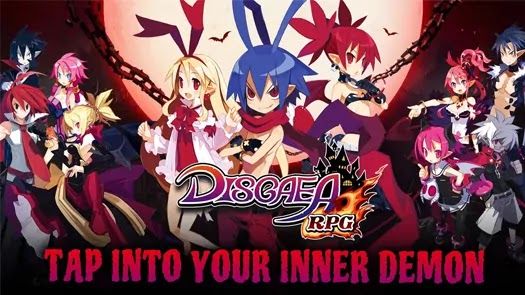
– Hi, dood! It’s the time to explore the Netherworld!
– The Netherworld is a place deeper than the deepest ocean and darker than the darkest cave. It’s a chaotic world ruled by demons, monsters, and Overlords. Try to raise the strongest Overlord on a strange but exciting adventure!
– Bluestacks is a gaming platform for emulating Android games on your PC or Laptop, changing how you play mobile games. With Bluestacks, playing Android games will take you to another level because you can now use the flexibility of your keyboard and mouse to give you full control of your game, regardless which gaming genre you are playing!
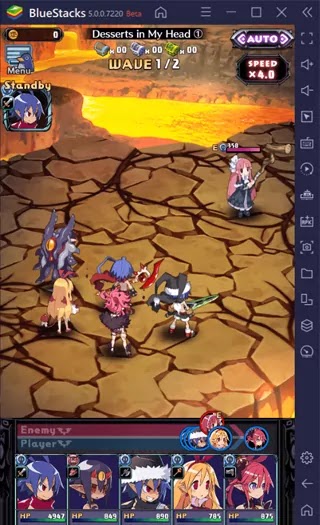 – It is also a popular method to get more play time and enjoy the game with wider screen, better graphics, smoother gameplay, and no battery problems. – Join over 500+ million people playing their favorite mobile games on their PCs and Macs on the world’s most popular Android Gaming Platform – Bluestacks. – Download and Install this android gaming platform on your PC first:
 (Click image above to download and install the latest version of Bluestacks
from their official website)
– Next, just click the Game Icon below to redirect you to the official download page.
– Click the “Already using BlueStacks? Open Now” option, then click “Open BlueStacks” in the browser popup to directly install the game to your Bluestacks ~ easy!
 Quick Install DISGAEA RPG Now! Click Game Icon Above To Do Easy Install To Bluestacks
(*NOTE: Select “Already using BlueStacks? Open Now” to avoid re-downloading Bluestacks.)
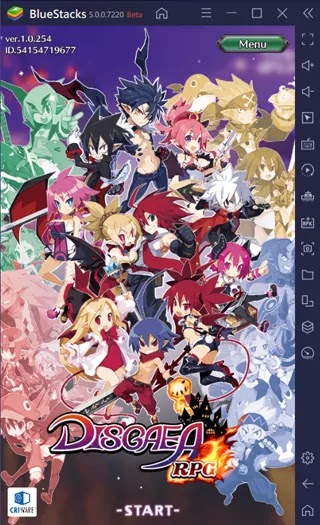
– Play your favorite android games on PC, just the way you like – with your keyboard and mouse, or gamepad. Note that some games will come with a default key map, but you can customize them anytime by selecting the “Advanced Game Controls” option.
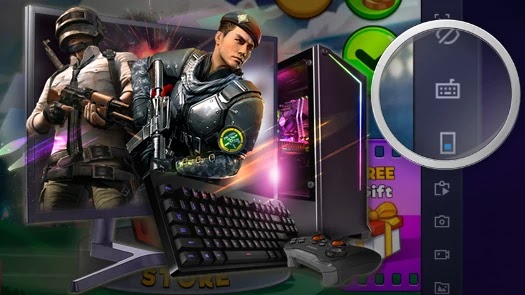 – Open the “Advanced Game Controls UI” (keyboard icon, right side area of your Bluestacks window) anytime while playing to set Hotkeys for your game.
– TIP: If your hotkeys aren’t working, try to close the Game Controls UI, minimize your Bluestacks window then bring it back up again ~ hopefully this would fix the problem.
– NOTE: Some games will get a default key map, try to use any keyboard keys to check.
– If you need help on how to set up your hotkeys, kindly refer to their support page (choose your current version of Bluestacks installed then browse their “Getting Started” or “FAQs” section):
– BlueStacks Support Page
– If you have an existing game from your phone or tablet, make sure that it is properly linked to your account first to back up your data and play your game on multiple devices like using PC and Bluestacks. – Go to the in-game Settings and Connect or Link your Game to any social media or game account (if available). 
 – Note: Before anything else, make sure that you have the latest version of Bluestacks, check their website for a newer version.
(Download and update your Bluestacks to support new Android Games.)
– Go to Settings and try to reduce the Resolution to 1280×720 and DPI to 240. – Try to switch between OpenGL or DirectX (Graphics Modes).
– Also try to increase the number of CPU cores and Memory (MB) for smoother gameplay.
– Open the game app and adjust the Graphics Settings in-game (if available).
– NOTE: Worst case scenario is that your PC or Laptop’s hardware specs can’t properly run Bluestacks.
– OS: Windows 7 64-Bit (x64) or higher (would recommend Windows 10 64-Bit). This would remove the RAM cap and enable you to use over 3.5GB of RAM.
– 8GB RAM
– Disk Space must not be full, free up at least 20% or 1/3 of total space (at least 40GB).
– NOTE: Please ensure Virtualization is Enabled on your PC/Laptop. – For more detailed info regarding Bluestacks’ System Requirements, refer to the link below (choose your current version of Bluestacks installed then browse their “Getting Started” and “FAQs” section):
– BlueStacks Support Page
– Check the “Support” links under Bluestack’s “Settings Menu > About” to check their support section and support email.
– You can also check their support page for more information here: Bluestacks Support Page
That’s it guys, thank you for checking our How To Play on PC or Laptop with Bluestacks for the strategy turn-based RPG mobile game – DISGAEA RPG. Good Luck and Happy Playing! ^^