Final Fantasy XV: A New Empire – How To Play on PC with Bluestacks
Final Fantasy XV: A New Empire
– is a strategy mobile game app presented by Epic Action LLC. Available to download from the App Store (iOS) and Google play (Android). – Experience Final Fantasy XV like never before and take the adventure with you wherever you go! – The world is on the brink of chaos, a world with no rules: only magic. Will your magic grow to stand the test of time or will your empire be defeated? Do you have what it takes to become its ruler? – Step into Final Fantasy XV: A New Empire and join the adventure! Play with Noctis, Cindy, Lunafreya, and all of your favorite FF15 characters in the largest open-world MMO in the series. 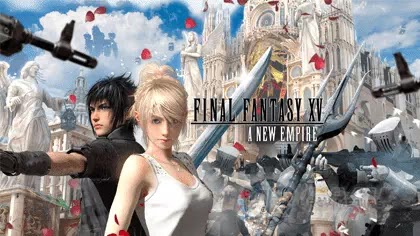 – Journey and explore the endless world and vast kingdoms, hunt for treasure, gather magical resources, defeat monsters, make friends with players from all over the world, and build the strongest Empire in Final Fantasy history!

– Bluestacks is a gaming platform for emulating Android games on your PC or Laptop, changing how you play mobile games. With Bluestacks, playing Android games will take you to another level because you can now use the flexibility of your keyboard and mouse to give you full control of your game, regardless which gaming genre you are playing!
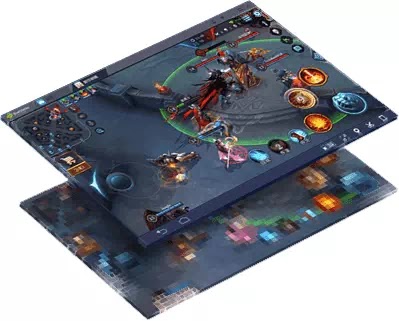 – It is also a popular method to get more play time and enjoy the game with wider screen, better graphics, smoother gameplay, and no battery problems. – Join over 300+ million people playing their favorite mobile games on their PCs and Macs on the world’s most popular Android Gaming Platform – Bluestacks. – Download and Install this android gaming platform on your PC first:
 (Click image above to download the latest version of Bluestacks) – Next, just click the Game Icon below to redirect you to the official download page.
– Click the “Already using BlueStacks? Open Now” option, then click “Open BlueStacks” in the browser popup to directly install the game to your Bluestacks ~ easy!

Quick Install Final Fantasy XV: A New Empire Now!
(Click Game Icon Above To Do Easy Install To Bluestacks,
(Select “Already using BlueStacks? Open Now“)
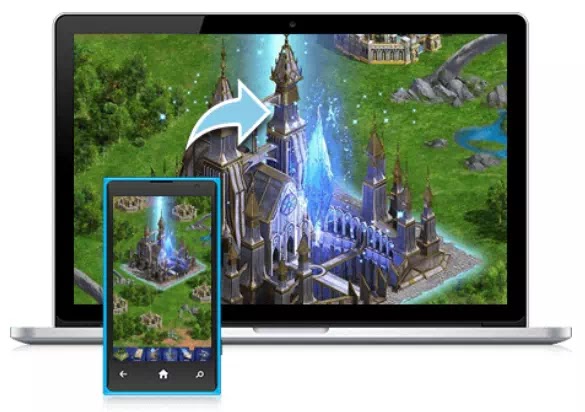
 – Open the “Keyboard Controls UI” (keyboard icon, lower right area of your Bluestacks window, or sidebar) anytime while playing to set Hot Keys for your game.
– Use the “Eye” icon next to it to adjust the visibility of your keys.
– Some games will come with a default key map, but you can customize them anytime by selecting the “Advanced Settings” option.
– If you have an existing game from your phone or tablet, make sure that it is properly linked to your account first to back up your data and play your game on multiple devices like Bluestacks. – Go to the in-game Settings and Connect or Link your Game to any social media or game account.
– Note: Before anything else, make sure that you have the latest version of Bluestacks, check their website for a new version (Go to “Settings” > “About” to check your version). Download and update your Bluestacks to support newer android games. – Go to Settings and try to reduce the Resolution to 1280×720 and DPI to 240. – Also try to switch between OpenGL or DirectX (Engine > Graphics Modes). – Check or Uncheck “Use advanced graphics engine mode”, or leave it unchecked by default.
– You can also try to increase the number of CPU cores and Memory (MB) for smoother gameplay.
– Open the game and check the Graphics Setting in-game for more options. – Worst case scenario is that your PC or Laptop’s hardware specs can’t run Bluestacks properly. – OS: Windows 7 64-Bit (x64) or higher (would recommend Windows 10 64-Bit). This will remove the RAM cap and enable you to use over 3.5GB of RAM.
– Get a x64-based Processor, and a Motherboard that can support that Processor (best if you can verify that they have virtualization support too, most new computer parts these days have this technology though).
– Note: Virtualization Technology Support will dramatically increase speed, but if you are using hypervisors like VirtualBox or VMWare, they might cause speed problems, so it is recommended to turn them off.
– 8GB RAM
– 2GB DDR3 Video Card or better (optional, update drivers too). – Disk Space must not be full, free up at least 20% or 1/3 of total space. Bluestacks recommends at least 40GB of free space.
– Check the “Help Center” under the “Settings Menu” to browse their help section.
– You can also check their support page for more information: Bluestacks Support Page
That’s it guys, thank you for checking our How To Play on PC or Laptop with Bluestacks guide for the strategy mobile game – Final Fantasy XV: A New Empire. Good Luck and Happy Playing! ^^